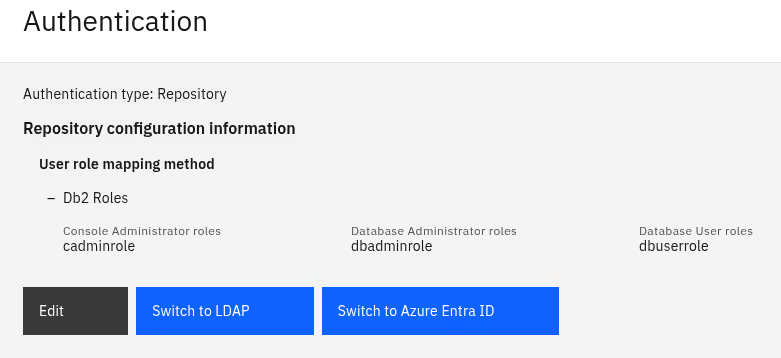
Have you already worked with or even installed IBM Db2 Genius Hub? Db2 Genius Hub is a web-based tool for (not only) Db2 users that helps you understand, govern, and optimize your data within IBM Db2. One of the first steps after installation is completed should be to configure user access and privileges. Here is my write-up from a recent workshop which I helped to prepare.
Db2 Genius Hub Authentication
When installed and initially configured, Db2 Genius Hub comes with a default administrator account (admin user). That admin account is only meant for the initial setup and as a means to configure the actual authentication. Db2 Genius Hub, right now, supports three different authentication providers:
- LDAP: By utilizing the LDAP provider both authentication and authorization can be delegated to an LDAP server.
- Similarly, by selecting Microsoft Entra ID (Azure Active Directory) as provider, the full feature set of an enterprise identity management system can be used. It includes single sign-on to Db2 Genius Hub and managing privileges.
- Repository database: With this option, authentication is delegated to the (Db2 Genius Hub) repository database. It is the database that holds all the metadata and collected monitoring data. As part of repository-based authentication, you can choose between four different means to figure out the Db2 Genius Hub role for a user. It is also noteworthy that Db2 itself could be configured to authenticate its users against LDAP, Microsoft Entra ID, or other providers.
The following screenshot shows how I selected “Repository” and then “Db2 Roles” as suboption. The other mentioned options, including the initial “Setup admin”, are shown, too.
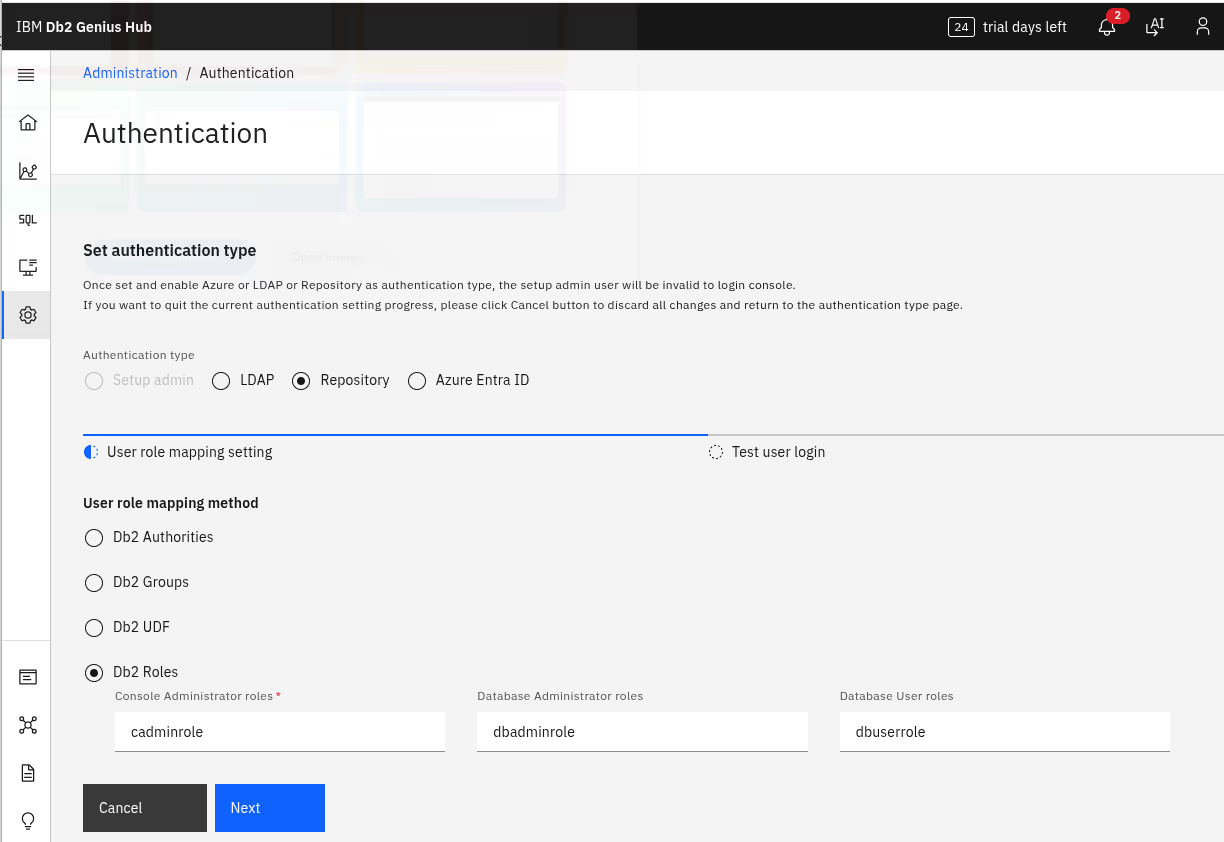
As shown above, the specific role (and thereby privileges) can be determined by mapping either
- the “Db2 Authority” within the repository database to a Genius Hub role,
- or looking at “Db2 Groups” to decide on the role,
- evaluate a “Db2 UDF” (user-defined function) to find the role,
- or, last but not least, by checking on specific “Db2 Roles”.
Repository-based authentication with roles
I picked the repository-based authentication for the workshop and went with “Db2 Roles”. It is a simple and straight-forward solution and works with what is already available, the repository database. What is needed, is to create database a role each for the Db2 Genius Hub console users, for database administrator, and database users (see the role names in the screenshot above in the previous section). Only later follows the configuration within Db2 Genius Hub because you already should have the users configured in the backend (repository db).
Database setup
For the setup, I proceeded with the following steps. As system administrator on the database machine, I created workshop users (useradd). But they could have come entirely out of, e.g., LDAP, so non-local users.
Once done, I logged in as one of the database administrators for the repository database and connected to it:
connect to repodb
Then, I created the three different roles:
create role cadminrole;
create role dbadminrole;
create role dbuserrole;
Thereafter, for each of the workshop users, I granted the specific role as well as CONNECT privilege on the repository database.
Regular DB user:
grant role dbuserrole to user demouser1;
grant connect on database to user demouser1;
Console administrator:
grant role cadminrole to user demoghadmin;
grant connect on database to user demoghadmin;
Console setup
With the setup in the repository database in place, I logged in to Db2 Genius Hub, still as the setup administrator. In the tooling for the console administration is the section “Authentication”. There, I selected and typed in what is shown in the screenshot above. After clicking “Next” to move on, it is time to test one or more users. Below, I show how I performed a positive (“demouser1) and negative test (“db2demo”):
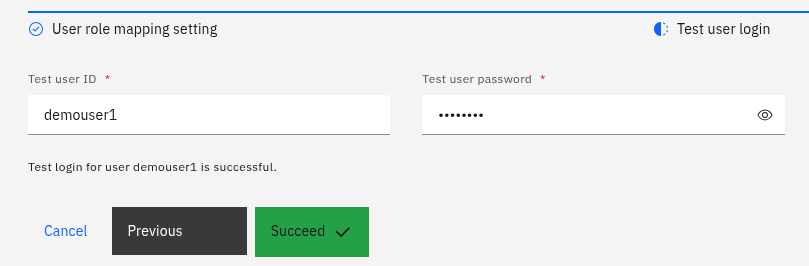
The error messages may vary depending on the authentication error. Has the user the privilege to connect to the database? Does the password match? Does the user hold any of the required roles?
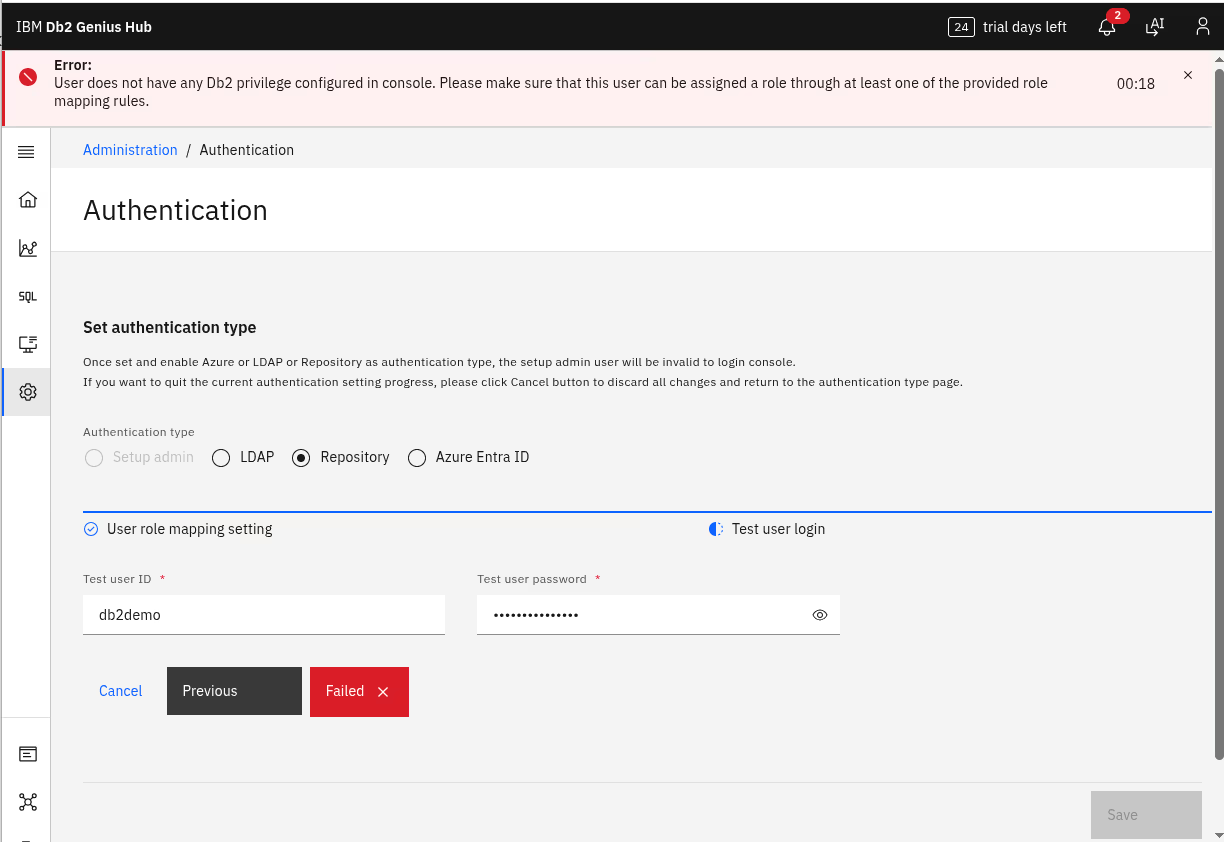
When done with the tests, it is time to actually enable the authentication method. At this time, hopefully everything works ok (see spoiler in lessons learned).
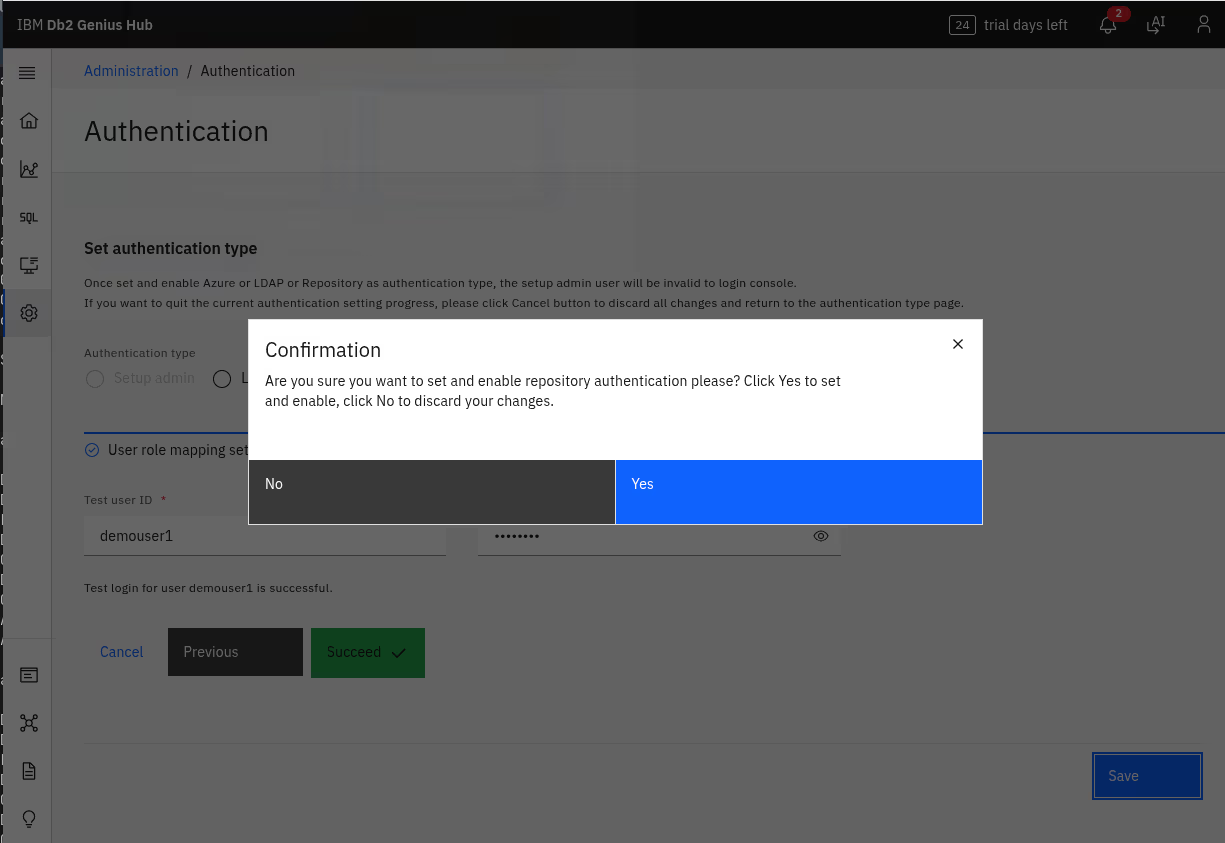
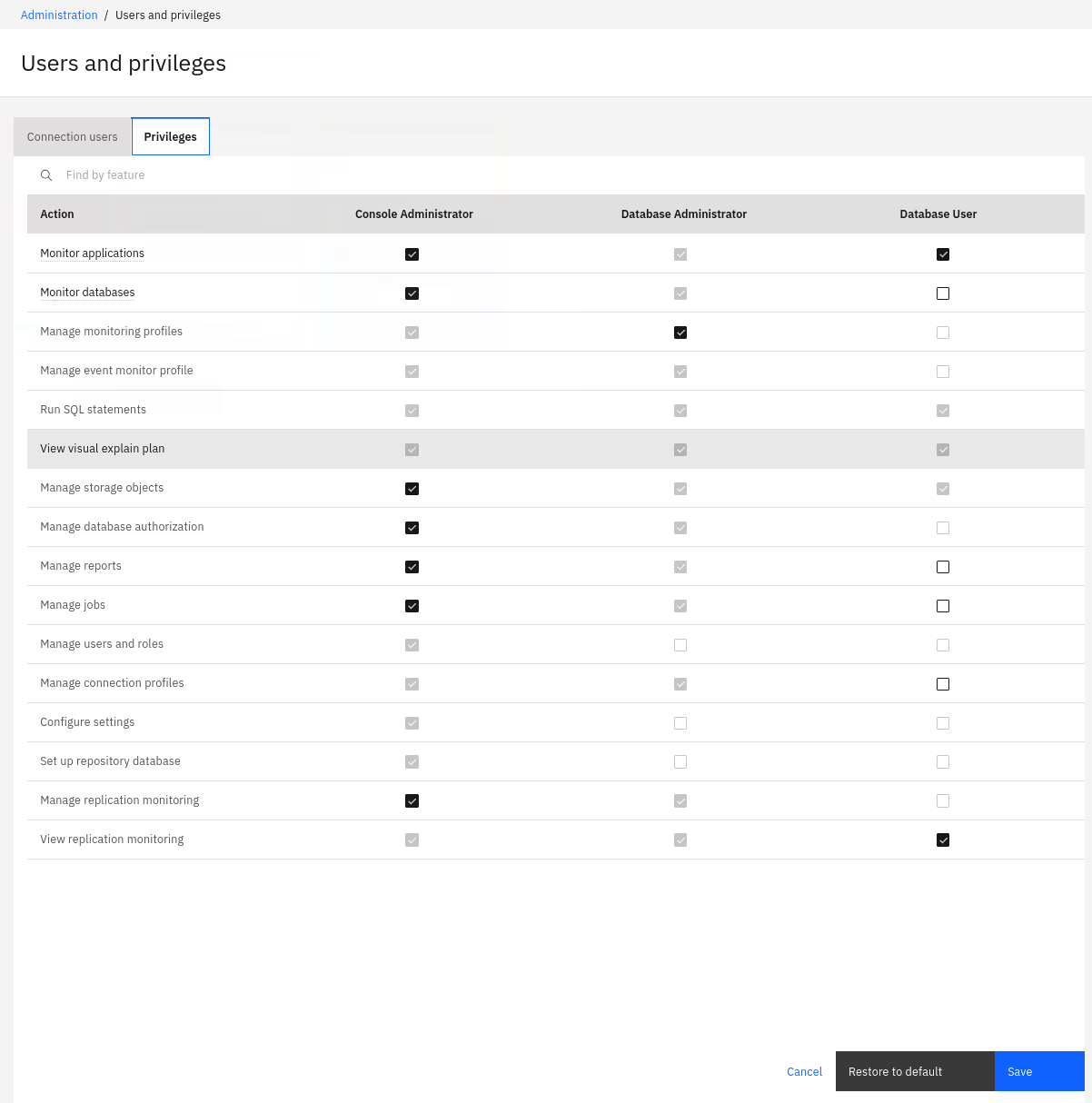
At this point, you may want to log out and log in again as the new console user (or one of them). Next would be to configure privileges within Db2 Genius Hub, if needed. Below is a screenshot of the default mapping of privileges.
Lessons learned and best practices
Here are some of the lessons learned and my best practices so far:
- As usual: Read the documentation. Make a plan. Adapt the plan…
- For smaller deployments and as a starter, using the repository database for authentication is quick and straight-forward with good results.
- Set up the database part first, then the console.
- In the case of problems know that you can either easily reset the authentication configuration or fix it within the repository database using some SQL.
- The repository database itself can be configured for transparent LDAP and other authentication providers, allowing to delegate authentication and privilege mapping to a corporate directory.
- All the users managed by the repository database need CONNECT privilege.
- In the case of errors or for debugging, there is
db2diag.logfor the repository database and files likeDS_SYSTEM.0for Db2 Genius Hub (check its “logs” directory).
Conclusions
Securing Db2 Genius Hub is not too hard. Several options are available. It needs some planning and experience, but overall is relatively quick. Build up some experience and share with others…
If you have feedback, suggestions, or questions about this post, please reach out to me on Mastodon (@data_henrik@mastodon.social) or LinkedIn.
